Central Web Authentication (CWA) is one of the most frequent tickets in a wireless engineer’s queue. While the flow is designed to be seamless, a single character typo or an overlooked configuration flag will completely break the chain.
This technical guide outlines the 14 key structural breakdown points where Cisco 9800 WLC and ISE CWA redirections fail, along with their precise diagnostic evidence and TAC-level remediation steps
The Lab & Environment Blueprint
Before diving into the scenarios, ensure your validation baseline matches standard enterprise deployment rules:
| Attribute | Deployment Standard |
| Wireless Architecture | Cisco Catalyst 9800 Series WLC (IOS-XE) |
| AAA Engine | Cisco Identity Services Engine (ISE) |
| Primary Auth Protocol | RADIUS (MAB / Mac Authentication Bypass) |
| Dynamic Policy Control | RADIUS Change of Authorization (CoA) via UDP Port 1700 |
Macro Phase 1: RADIUS Drops
Scenario 1: RADIUS Traffic Drop (Unknown Network Device)
The Symptom: The client connects to the SSID, but the captive portal never triggers. The ISE Live Logs display a complete absence of packets or a distinctive drop signature.
The Evidence: Filter the ISE Live Logs around the exact timestamp of testing to isolate the following drop code:
Event   | 5405 RADIUS Request Dropped
 Failure | 11007 Could not locate Network Device or AAA Client
The Root Cause: ISE silently drops incoming UDP traffic if it does not recognize the source IP of the 9800 WLC as a trusted client. This stems from missing data under
Administration > Network Resources > Network Devices, or a WLC source interface routing discrepancy where the WLC emits RADIUS packets using an unexpected interface (e.g., Service Port or unmapped VLAN).The Solution:
Verify and align the IP address in ISE under the Network Devices repository.
Explicitly bind the RADIUS source interface under the specific server group configuration on the 9800 WLC.
🛑 Note: It is highly recommended to apply the
ip radius source-interfacecommand directly under each specific RADIUS group rather than globally. This ensures granular routing control in multi-VLAN, multi-VRF environments.
conf t
  aaa group server radius <Group-Name>
    ip radius source-interface <Vlan/GigabitEthernet>
 exit
Scenario 2: Shared Secret Key Mismatch
The Symptom: Packets safely traverse the network path from the WLC to ISE, but authentication fails completely. ISE is actively receiving the data but cannot securely read or process it.
The Evidence: Locate this failure signature inside the ISE Live Logs:
Event   | 5405 RADIUS Request dropped
Failure | 11036 The Message-Authenticator RADIUS attribute is invalid
The Root Cause: The cryptographic shared secret configured on the Catalyst 9800 WLC does not perfectly match its counterpart database entry inside ISE. Even a single trailing whitespace or special character parsing defect will result in a failed validation hash.
The Solution:
Re-type the shared secret string on ISE under
Administration > Network Resources > Network Devices.Re-apply the plain-text key on the WLC to eliminate copy-paste anomalies.
💡 Note: If parsing errors persist across vendors, temporarily simplify the key string to an alphanumeric format (e.g.,
Support123) to isolate software-level special character interpretation bugs.
Advanced Verification (The Wireshark Method)
If the 11036 error remains stubborn, pull a packet capture (TCPDump) on the ISE PSN interface and open it in Wireshark. Navigate to: Edit -> Preferences -> Protocols -> RADIUS
Input your expected shared secret string into the field. If the key matches reality, Wireshark will immediately decode and decrypt the RADIUS AVPs. If it fails to parse, the WLC is outputting a cryptographically distinct string.
Macro Phase 2: ISE Policy Logic & Access Overrides
Scenario 3: MAB Authentication Failed (Wrong Policy Match)
The Symptom: The guest device authenticates to the L2 SSID but hits an immediate “Deny Access” screen or drops connection completely. Live Logs show the client matching an incorrect policy block (such as the catch-all Default rule) rather than the planned Guest Redirect rule.
The Root Cause: The engine stops evaluating rules because it hits a “Stop” condition for unknown endpoints, or the policy rules are structurally out of order.
The Solution:
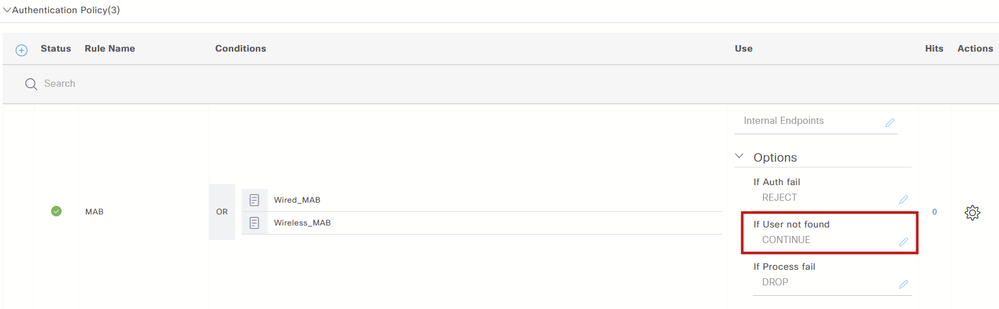
Adjust your Authentication Policy options. For CWA to function, ISE must gracefully handle unknown MAC addresses. Set the rule parameter
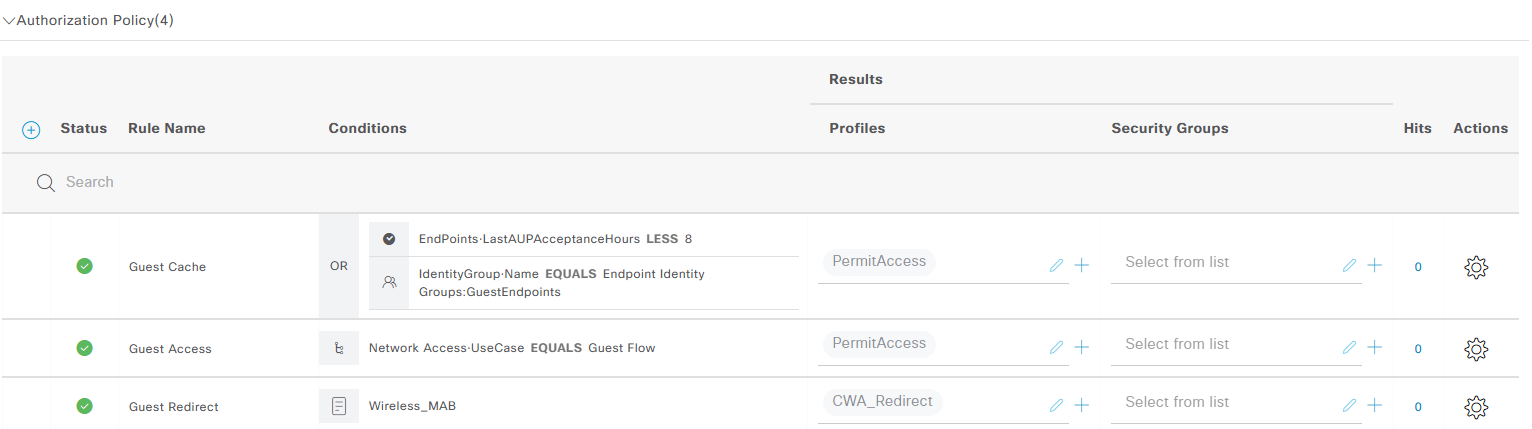
If user not foundto Continue. This forces the evaluation process down into the Authorization Policy layer where the redirect is managed.Enforce the correct top-to-bottom rule processing hierarchy inside your Authorization Policy:
[TOP]     -> 1. Reconnect/Cache Rule (Checks EndPoint-LastAUPAcceptanceHours LESS 8)
[MIDDLE]  -> 2. Guest Access Rule (Matches Network Access:UseCase Equals GuestFlow)
[BOTTOM]  -> 3. Guest Redirect Rule (The "Catch-All" Wireless MAB that pushes CWA_Redirect)
💡 Note: The Guest Cache rule drastically improves user experience by allowing roaming or sleeping devices to bypass the portal if they have already accepted the terms within a specified window.
Scenario 4: ISE Attributes Discarded by WLC (Client Session Active)
The Symptom: ISE indicates a perfect green “Success” log state and transmits the
CWA_Redirectprofile. However, the endpoint acts like it is sitting on a completely open network, retaining unpoliced network access.The Evidence:
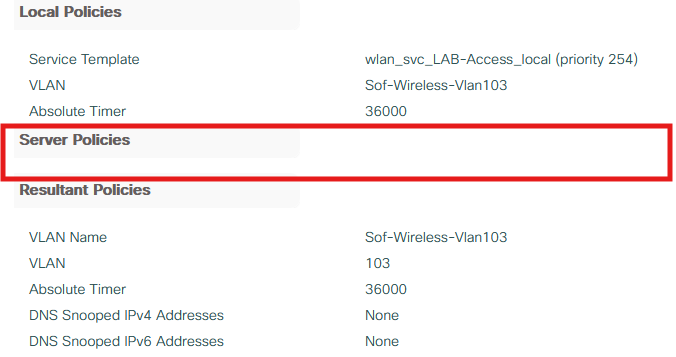
- GUI: Navigate to Monitoring > Wireless > Client > General > Security Information. If the Server Policies section is empty, the WLC has discarded the instructions sent by ISE
- CLI: Execute the following operational command on the 9800 WLC CLI to check the active session policies:
show wireless client mac-address <xxxx.xxxx.xxxx> detail
If the attributes are being discarded, your output under the policy fields will look completely unpopulated
Local Policies:
    Service Template : wlan_svc_LAB-Access_local (priority 254)
        VLAN             : Sof-Wireless-Vlan103
        Absolute-Timer   : 36000

Server Policies:
<empty>

Resultant Policies:
        VLAN Name        : Sof-Wireless-Vlan103
        VLAN             : 103
        Absolute-Timer   : 36000
The Root Cause: The Catalyst 9800 WLC is a security-first operating platform. By default, a local policy profile will aggressively block an external AAA engine from overriding its locally mapped policy parameters unless it is explicitly given permission.
The Solution: Enable AAA Override and Network Admission Control (NAC) status within the precise WLC Policy Profile linked to your guest SSID.
conf t
  wireless profile policy <LAB-Access>
   aaa-override
   nac
 exit
Scenario 5: Redirect ACL String Mismatch (Session Tearing)
The Symptom: ISE logs are functional and healthy, but the moment the
url-redirect-aclattribute lands on the WLC, the client’s active session is instantly terminated and destroyed.The Root Cause: The 9800 WLC receives an ACL string identifier from ISE but cannot locate an exact case-sensitive match within its local configuration database. Because AAA Override is enabled, the WLC tries to enforce the policy. Failing to find the local string creates an AVP installation failure. Unwilling to allow an un-policed connection to stay alive, the WLC terminates the client session.
The Solution: Enforce strict naming alignment. If ISE is configured to push
WebAuth_Redirect_ACL, the WLC configuration must match it character-for-character.
🛑 Note: Capitalization, dashes, and underscores are strictly case-sensitive.
WebAuth-ACLis treated as completely distinct fromwebauth-acl.
Macro Phase 3: Layer 3 Core Infrastructure & Intercepts
Scenario 6: DHCP or DNS Failure (No Connectivity Block)
The Symptom: The guest device joins the L2 wireless network but gets stuck on an indefinite “Connecting…” status. The OS Captive Network Assistant (CNA) engine fails to trigger.
The Root Cause: The endpoint is completely blind on Layer 3. It either cannot obtain an IP address due to DHCP pool exhaustion, or it is failing to resolve basic DNS queries. If a redirect ACL accidentally permits the interception of DNS traffic, the WLC will attempt to redirect UDP Port 53 queries back to the web portal web server, completely breaking name resolution.
The Solution: Restructure the Redirect ACL logic to explicitly pass DNS traffic around the redirection engine.
Scenario 7: Layer 3 Interception Bypass (Pass-Through Leak)
The Symptom: The client successfully resolves its background OS connectivity checks via DNS and builds its TCP three-way handshake, but instead of hitting the portal, the client effortlessly browses directly out to the open internet.
The Root Cause: The Redirect ACL is configured backwards, allowing the traffic to exit the WLC instead of punting it to the CPU for URL injection.
The Solution: Align your configuration with the unique logic of IOS-XE redirect ACLs:
deny= Do NOT redirect (Pass-through traffic seamlessly).permit= Intercept traffic and punt to the local CPU for web portal redirection.
ip access-list extended WebAuth_Redirect_ACL
 deny ip any host <ISE-IP>
 deny ip host <ISE-IP> any
 deny udp any any eq domain
 deny udp any eq domain any
 permit ip any any
Scenario 8: HTTP Web Services Disabled on WLC
The Symptom: The Redirect ACL is structured flawlessly, yet the client traffic bypasses redirection or fails to receive an HTTP 302 redirect response.
The Root Cause: The internal HTTP web administration engine on the WLC is completely turned off globally or inside the webauth parameter map, preventing the CPU from executing interception logic.
The Solution: Enable the internal webauth server engine.
parameter-map type webauth global
 webauth-http-enable
Macro Phase 4: Name Resolution, Portal Access & Certificates
Scenario 9: ISE FQDN DNS Resolution Failure
The Symptom: The client gets the redirect URL pushed into its session table, but the browser displays a
DNS_PROBE_FINISHED_NXDOMAINblock page.The Root Cause: The guest endpoint cannot translate the Fully Qualified Domain Name (FQDN) of the ISE Policy Service Node (PSN) into a routable IP address. This occurs if public DNS options (like
8.8.8.8) are handed out to guests via DHCP, but the ISE FQDN is only defined on private, internal corporate name servers.The Solution: Ensure the guest DNS scope can resolve the ISE FQDN, or map a publicly resolvable FQDN for your ISE PSN nodes.
🛑 Note: If you deploy a single public FQDN pointing to multiple ISE nodes behind a Load Balancer, ensure the Load Balancer uses strict Sticky Sessions / Source IP Persistence. If a client’s 3-way handshake hits PSN-01 but the next packet shifts to PSN-02, the TCP state machine resets instantly.
Scenario 10: Client Unable to Open Portal (TCP Timeout)
The Symptom: DNS correctly resolves the FQDN to the proper IP address, but the guest browser eventually times out with a “Connection Timed Out” error.
The Root Cause: The initial TCP SYN packet targeting the captive portal port (typically
8443) cannot reach the ISE node. This is usually caused by missing entries in the redirect ACL (forgetting to add a secondary or tertiary PSN node, causing the WLC to loop the traffic back to itself) or upstream security firewalls blocking port 8443.The Solution: Update the Redirect ACL to explicitly pass traffic destined for all potential ISE PSN nodes.
ip access-list extended WebAuth_Redirect_ACL
 deny ip any host <ISE-PSN1-IP>
 deny ip host <ISE-PSN1-IP> any
 deny ip any host <ISE-PSN2-IP>
 deny ip host <ISE-PSN2-IP> any
 deny udp any any eq domain
 permit ip any any
Scenario 11: Untrusted Certificate Warning (The HTTPS Intercept Trap)
The Symptom: When a guest client connects to the SSID and attempts to navigate to a secure HTTPS website (e.g.,
google.com) to kick off the redirection flow, their browser immediately drops into a hard stop, presenting an intimidating “Your connection is not private” (NET::ERR_CERT_AUTHORITY_INVALID) security alert page.The Root Cause: The Catalyst 9800 WLC is aggressively attempting to execute Layer 3 interception on encrypted TLS traffic. Because the WLC does not own—and cannot cryptographically impersonate—external third-party domains on the internet, the client’s web browser flags this redirection behavior as an active Man-in-the-Middle (MITM) attack. The browser drops a hard security block on the execution of the page to maintain TLS session integrity.
The Solution: Disable HTTPS interception entirely within the WLC’s global web authentication parameter map. This architectural shift forces the network infrastructure to ignore encrypted HTTPS requests for redirection and rely exclusively on unencrypted HTTP requests. Modern mobile and desktop operating systems generate these unencrypted queries in the background via automated connectivity checks (such as Apple’s
captive.apple.comor Microsoft’smsftconnecttest.com). Dropping HTTPS interception allows the native OS Captive Network Assistant (CNA) engine to trigger cleanly, surfacing your login portal instantly without generating browser-level security alerts.
conf t
  parameter-map type webauth global
   no intercept-https-enable
   webauth-http-enable
   secure-webauth-disable
exit
🛑 Note: The Public Certificate Fallacy
Purchasing and installing a publicly signed SSL/TLS certificate (e.g., DigiCert or Let’s Encrypt) on your Catalyst 9800 WLC will not fix HTTPS interception errors. A public certificate is cryptographically restricted; it only validates the exact Fully Qualified Domain Name (FQDN) assigned to your controller’s portal interface. It explicitly lacks the authorization to sign or spoof traffic belonging to other secure websites on the internet.
Furthermore, because modern enterprise web destinations utilize HTTP Strict Transport Security (HSTS), mobile operating systems will strictly refuse to grant any “Proceed Anyway” bypass options to the end user if a certificate mismatch is detected. Turning off HTTPS interception entirely remains the only standard, enterprise-grade resolution path.
The Future of WebAuth: Moving Beyond HTTP Intercepts
Traditionally, captive portals rely on “intercepting” HTTP traffic to redirect users—a method that is becoming increasingly difficult as the web moves toward total encryption.
RFC 8910 introduces a more modern approach: Captive-Portal Identification in DHCP and Router Advertisements (RAs). Instead of waiting for a browser to trigger a redirect, the network explicitly tells the client it is behind a portal via DHCP options or IPv6 RAs. This provides a cleaner, more reliable user experience and aligns with the industry’s shift toward secure-by-default networking.
For the full technical details, check out the official RFC here: Captive-Portal Identification in DHCP and Router Advertisements (RAs)
Scenario 12: ISE Portal TLS Handshake Loop (Internal CA Block)
The Symptom: The device redirects to the authentic ISE portal page, but the browser drops into a hard-lock loop with no option to click “Proceed anyway”.
The Root Cause: ISE is utilizing a web portal certificate signed by a corporate internal Certificate Authority (CA). Guest devices do not carry this private root trust anchor in their local stores. Furthermore, if the domain is protected by HTTP Strict Transport Security (HSTS), modern mobile operating systems will immediately block page rendering with zero bypass paths available.
The Solution: Deploy a publicly trusted certificate (e.g., DigiCert, Let’s Encrypt) for all guest-facing portals. Ensure the entire certificate chain (including all intermediate certificates) is bundled and uploaded to ISE.
Macro Phase 5: Post-Auth State Synchronization
Scenario 13: CoA Failure (Trapped in the Portal)
The Symptom: The guest user inputs valid credentials or accepts the portal AUP page. ISE marks the session as “Authentication Succeeded” in its database, but the client remains trapped in the portal without internet access.
The Root Cause: The WLC continues to enforce the stale redirect policy parameters because it has not processed a Change of Authorization (CoA) “nudge” from ISE to clear the session. This happens if the WLC Policy Profile lacks the
nacstatus flag, or if an intervening firewall is blocking CoA traffic.
RADIUS Communications:  WLC (Ports 1812/1813 UDP) ----> ISE
CoA Communications:     ISE (Port 1700 UDP) ----------> WLC
The Solution:
Ensure your Policy Profile has
nacmode actively enabled[cite: 2].Ensure that global RADIUS dynamic authorization is enabled on the WLC and that upstream security firewalls are open for UDP port 1700[cite: 2].
aaa server radius dynamic-author
 client <ISE-PSN1-IP> server-key <your-shared-key>
 client <ISE-PSN2-IP> server-key <your-shared-key>
Scenario 14: Flow Loop (Policy Processing Defect)
The Symptom: The WLC successfully runs a CoA re-authentication, but the client is immediately looped back to the web portal login screen[cite: 2].
The Root Cause: The client successfully hits the second MAB check after completing the web portal auth, but its session attributes still match the original Redirect Authorization rule in ISE instead of matching the higher-privileged Permit rule.
The Solution: Verify that your “Permit Guest” policy is positioned above the “Redirect Guest” rule inside the ISE Authorization Policy list, and ensure it validates a post-portal state condition (such as
Network Access:UseCase Equals GuestFlow)